

Sideloading Ebooks – WHY?
If you’re an indie author, you will have occasions (giveaways, ARCs) where you want to send your ebook directly to an individual (click here to see how to format your own ebook files). Some people use Smashwords coupons or gift ebooks directly from B&N or Amazon, but there are serious advantages to sending direct:
1) There is no cost
2) Even Smashwords requires your winner/reviewer to have knowledge about sideloading ebooks. You might as well make it easy for them by sending it directly to their inbox.
3) You can include a message like this (I get a lot of newsletter subscriptions from these):
Hi!You won a copy of Open Minds from blog! Attached please find a copy of the Kindle version. I hope you’ll enjoy it! If you do, it would be great if you would write an honest review on Amazon. For writers trying to get the word out about their work, reviews are a tremendous help. The sequel, Closed Hearts, was just released. If you would like to receive updates about future releases, including Free Souls (Mindjack#3), you can subscribe to my author newsletter. I have a short prequel story to Open Minds called Mind Games. It’s available for FREE on Amazon!
All the Best,
Sue
Sideloading Ebooks – HOW?
Many people already know how to get files onto their devices, but if they don’t (or if you’re trying to help grandma figure it out), here’s some handy instructions you can include:
- Attach a USB cable between your Nook and your computer.
- Right-click on the attached file “My Book for Nook.epub” and select “Save-As”
- Your Nook should show up as an option on the left-hand-side of your “Save-As” dialogue box
- Double Click on your Nook icon to open the folder – look for MyFiles>Books
- Save the file “My Book for Nook.epub” in your “Books” folder on your nook
- When you are done saving, eject your Nook from your computer by right-clicking on it and selecting “eject”
- Make sure you have the iBookstore app installed on your iPad/iPhone.
- Open this email on your iPad/iPhone.
- Right-click on the attached file “My Book for iPad.epub” – you should have the option to “Open with iBookstore”
- You are done – the book should show up on the bookshelves of your iBookstore app.
- Find your “Kindle Email” address by going to Your Account>Manage my Kindle on your Amazon account.
- Click on “personal document settings” – you should see your kindle email address, something like susan.quinn99@email.com
- Make sure your regular email address is on the “approved personal document email list” listed below your kindle email address
- Send an email, with the attached file “My Book for Kindle.mobi” to your kindle email address.
- You are done – the book should show up on your kindle within 10 minutes (you must have WiFi turned on, so it can update).
More Tips N Tricks to come…

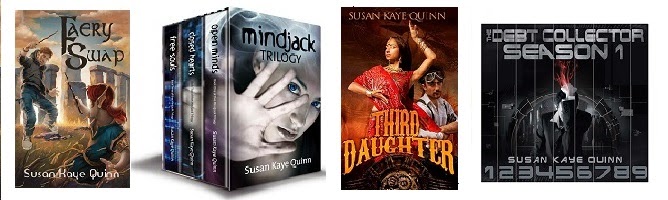
 Susan Kaye Quinn is the author of the bestselling Mindjack Trilogy, which is young Third Daughter (The Dharian Affairs #1) which is her excuse to dress up in corsets and fight with swords. She also has a dark-and-gritty SF serial called The Debt Collector and a middle grade fantasy called Faery Swap. It’s possible she’s easily distracted. She always has more speculative fiction fun in the works. You can find out what she’s up to by subscribing to her newsletter (hint: new subscribers get a free short story!) or by stopping by her blog (www.susankayequinn.com).
adult science fiction. Her latest release is
Great tips.
For Kindle you can also truly side load by plugging in your Kindle via USB and then copy the file from your desktop or downloads folder directly into the Kindle documents folder. I've had to do this too.
I've tried this and it doesn't work for my Kindle Fire – maybe it's just the Fire, but I think the email thing works for all Kindles. Thanks for the tip, though!
I was going to say what Laura did. On the old, standard Kindle it works well and is super-simple. Thanks tons for the sideload tips for other devices!!
I won an ebook from an indie author, but it required me signing up for a Smashwords account to download it, and I wasn't interested in that. So I didn't bother with the book.
Where are your instructions for Kobo? 😀
As an iPod Touch user, I predominantly use my Kobo and Kindle apps to download books. I've only once used iBooks, and that's because my 12 yo has a billion iTunes cards from grandparents that he doesn't need (the cards, not the grandparents).
I've never used Kobo, so I'm no help there. 🙂
I have the old old version. That one you plug into the computer. I think it's the same with the others, unless it is Wifi. With the apps, you just have to be signed onto your account and the books automatically download when you open up the app. It's sooooo easy. Too easy. 😀
Great post, btw. 😀
Great information, thanks Susan!
What a great post idea, Susan. Side-loading can be so confusing at first. 🙂
Susan – You are a wealth of knowledge. Good luck on your writing!
Great tips. If I ever download a pdf of a book I'll try this to put it on my new Nook. Wish I could switch some of my Kindle books there because those are on my computer.
Great post. I learned something new.